Jobs Can Be Scheduled to a Single Client, or Multi Scheduled to Many Clients
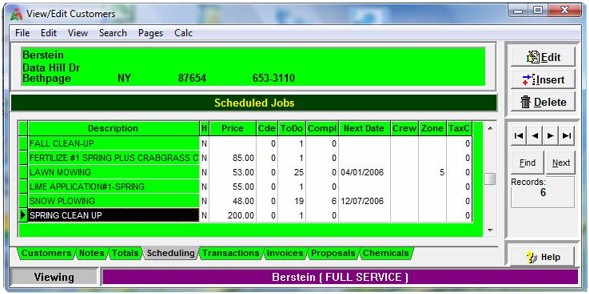
Individual scheduling is done directly from the View/Edit Customers screen. The user highlights a customer, then
clicks on the green Scheduling tab along the bottom of the screen. The F7 key can be used as well to toggle to this screen.
Standard program-wide Insert, Edit and Delete buttons on the right hand side of dialog box navigates through scheduling functions. The user can also double click on any scheduled item to access the
same Defining Scheduled Job screen used to add, modify and delete scheduled jobs. Scheduled jobs are carried over at the start of a new year with all completion counters reset to "0." Jobs
then can be completed in AXP as they are performed.
A Copy Jobs feature found in Options allows the user to copy jobs from one client to another not yet defined. Multi Scheduling is easily accessed from the Customer submenu found on the
top Menu Bar. From here all customers or only those selected can be scheduled to specific jobs. Jobs can be rescheduled as well.
Copyright © 1996-2007 RMP Communications Inc. All rights reserved.
No part of this web site may be reproduced or copied in any form
whatsoever, verbal, written, electronic or otherwise, without the
expressed written permission of the copyright holder. Violators
of this copyright and software pirates will be prosecuted to the
full extend of the law. Site created in the United States of America.


